
Make a Thriller AI dance with a lead, duo or trio
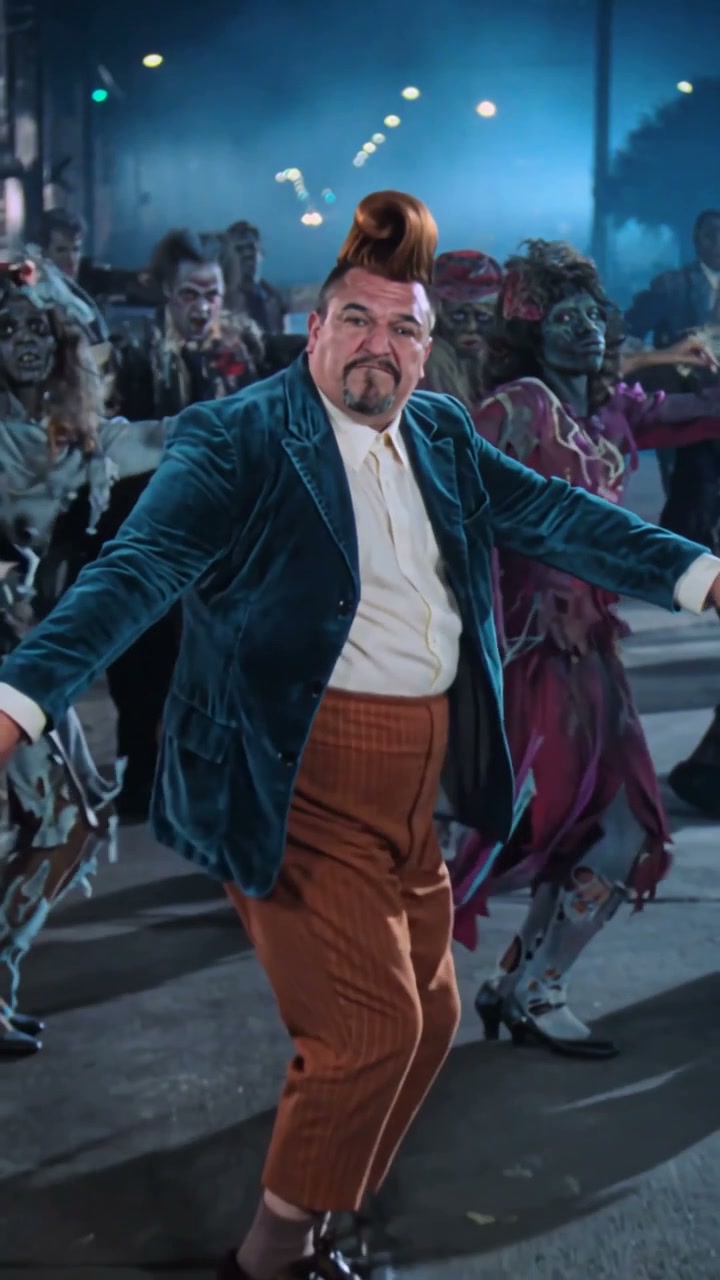
A strong zombie-dance edit keeps the lead readable inside the crowd. You can make a solo character the focus or cast a small trio while leaving the surrounding ensemble in place. The important choices are the clothes, the opening role map and the moments when dancers overlap.
Choose a cast size before collecting photos
Begin with one full-body character image for the center-front lead. Include the intended outfit and shoes; bent knees and steps make footwear more noticeable than in a portrait-only scene. If you want a duo, choose either one of the nearest supporting dancers. For a trio, choose both.
The prepared template identifies the optional dancers by their opening positions: immediately behind the lead on the viewer’s left and right. These are lasting role labels, not instructions to replace whoever happens to occupy that side later. Leave a slot empty to retain its original performer.
Use choreography as your reference
For your own workflow, obtain a dance clip you recorded or have permission to edit. Pick one with enough separation to identify the lead and supporting dancers at the beginning. Keep the original soundtrack and framing. Avoid a version where captions cover the hands or the lead’s legs are cut off.
Use an editor that accepts a motion video together with the number of character images in your cast. A text prompt can request a zombie dance, but the supplied performance is what gives this version its particular shoulder accents, hand shapes and turns.
Keep identities attached through overlaps
This three-person example binds the opening positions. For a lead-only version, remove the Image 2 and Image 3 assignments and ask to preserve all supporting dancers. For a duo, keep only the chosen side and renumber its image as 2.
Recast the dance in @Video 1. Use the complete person and costume from @Image 1 for the center-front lead. Use @Image 2 for the nearest dancer behind the lead on the viewer’s left at the opening, and @Image 3 for the nearest dancer on the right. Keep those identities after turns and overlaps. Follow the knee bends, shoulder accents, claw-like gestures and timing. Preserve all other dancers, the nighttime street, fog, lighting and camera. Keep separate bodies and outfits; do not create extra dancers or move costumes between roles.Build the dance in a controlled pass
In AI Genjutsu the source and role slots are ready. The same planning works in a compatible editor with your own reference.
- Attach the reference and the individual cast photos. Check the opening frame against your role labels.
- Use the role prompt without adding unrelated choreography. Choose the duration and framing supported by the editor.
- Generate and inspect the lead first, then each optional dancer. Watch their return after every overlap.
- If the result is silent, add the same excerpt’s original audio in your video editor, aligned to the same starting beat.
- Export with the full group framing and audio enabled. Replay the file to check the lead’s steps and final pose.
Check the dance at its hardest moments
Pause when hands pass near heads and when one dancer crosses another. Look for joined fingers, extra arms, a changed jacket or a supporting body that inherits the lead’s appearance. If these occur, try clearer full-body photos and reduce the number of replacements before requesting a more elaborate cast.
If the whole ensemble falls out of rhythm, check that the reference and audio are the same excerpt. A clean prompt cannot guarantee perfect choreography or body detail. Use the result only when its visible errors are acceptable for your intended greeting, costume post or edit.
Questions before you begin
Does a supporting photo replace the whole crowd?
No. Each optional slot belongs to one nearest supporting dancer. The rest of the ensemble is retained.
Can I use a character in ordinary clothes?
Yes. The photo defines the chosen appearance and outfit. Choose a costume photo if the costume is essential; a name in the prompt does not provide its exact design.