
Design a Venom Car AI reveal around your own vehicle
A black-liquid reveal should end with a car you can recognize from the input photo. Decide which vehicle details matter before generating, then let the reference provide the tendrils, formation and reveal. The spectacle works best when the car stays coherent after the liquid clears.
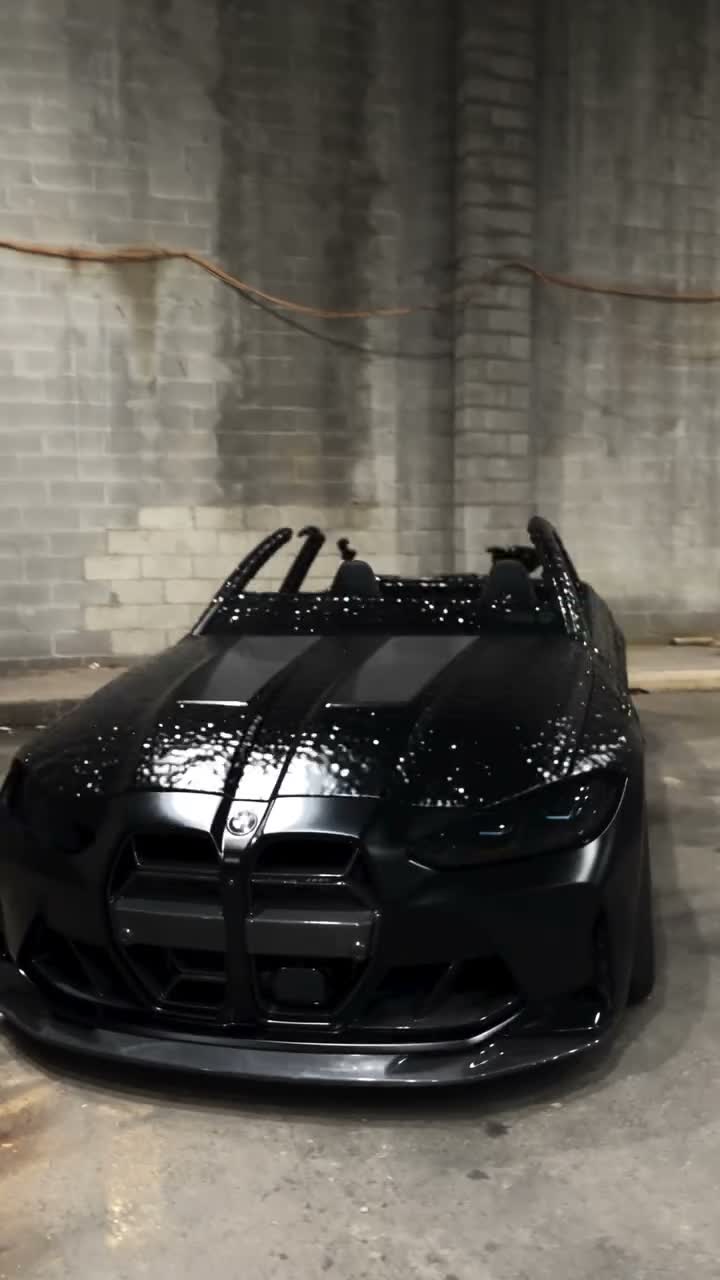
Choose the car image for the reveal you want
Use one clear photograph of the complete vehicle, ideally a three-quarter view that shows its front, side, wheels and roofline. Leave space around the body and avoid people or another car obscuring it. Strong reflections can hide paint and panel shapes; choose more even lighting when possible.
Identify three or four features you will inspect later: wheel design, headlight shape, grille, body proportions or a distinctive color. A single photo cannot fully specify an unseen rear, so be cautious about exact details in views the source image does not show. Small badges and plate text may also change.
Keep the effect and vehicle instructions separate
Obtain a black-liquid car reference that you may edit, or record and assemble your own permitted material. Look for a complete progression from liquid or early formation to a visible vehicle and final views. Use a video-reference editor that accepts a car image; a prompt-only generator may invent a different reveal.
The prepared AI Genjutsu page supplies the garage scene and sequence. Its image slot is for a vehicle, with no driver photo required. A different setting belongs in a custom workflow rather than an extra character upload.
Describe the target car after the liquid disappears
Use this as a starting point in a compatible editor. Keep the vehicle description tied to the image instead of asking for a named model that might conflict with it.
Recreate the black-liquid reveal in @Video 1 using the entire vehicle from @Image 1 as the final car. Preserve its body proportions, roofline, paint, wheels, headlights and grille across the reveal and later views. Follow the reference liquid tendrils, formation, unveiling and camera timing. Keep the garage, floor reflections and lighting. Reveal one coherent car; do not add a driver, another vehicle or unrelated parts. Keep the vehicle design stable after the liquid clears.Generate a reveal you can judge
Choose settings around the reference, then inspect the car separately from the effect.
- Attach the permitted reveal clip and your full-car image. Check that the selected excerpt includes a clear final vehicle view.
- Enter the prompt and choose supported output settings. Review the cost and duration before submitting.
- Play the liquid sequence once for motion, then pause after the reveal to inspect body shape, wheels and lights.
- If the result is silent, add the same reference excerpt’s soundtrack in an editor at the matching start and speed.
- Export without cropping away the wheels or roof. Reopen the file and check that both the reveal and final car are visible.
Do not let the effect hide a changing car
Compare the first clear front view with the final angle. Count the wheels, check where they sit, and look for headlight or grille designs changing between shots. Watch the edge where liquid meets bodywork for melted panels that never resolve.
If the vehicle shape is wrong, replace a heavily cropped or reflective input before adding more effect adjectives. If only an unseen angle changes, the single photo may not contain enough evidence for an exact match. Use a different supported workflow with additional views when that accuracy is essential. Results vary, including after a better prompt.
Questions before you begin
Can I upload a person instead of a car?
This template is defined around a complete target vehicle. Choose a car photo; a person input does not express the intended vehicle design.
Will my number plate and badges remain exact?
Do not rely on exact small text or logos. Review those details and correct them in an editor if they matter to the finished piece.