
Make a Window Peeper AI pet scene with a readable punchline
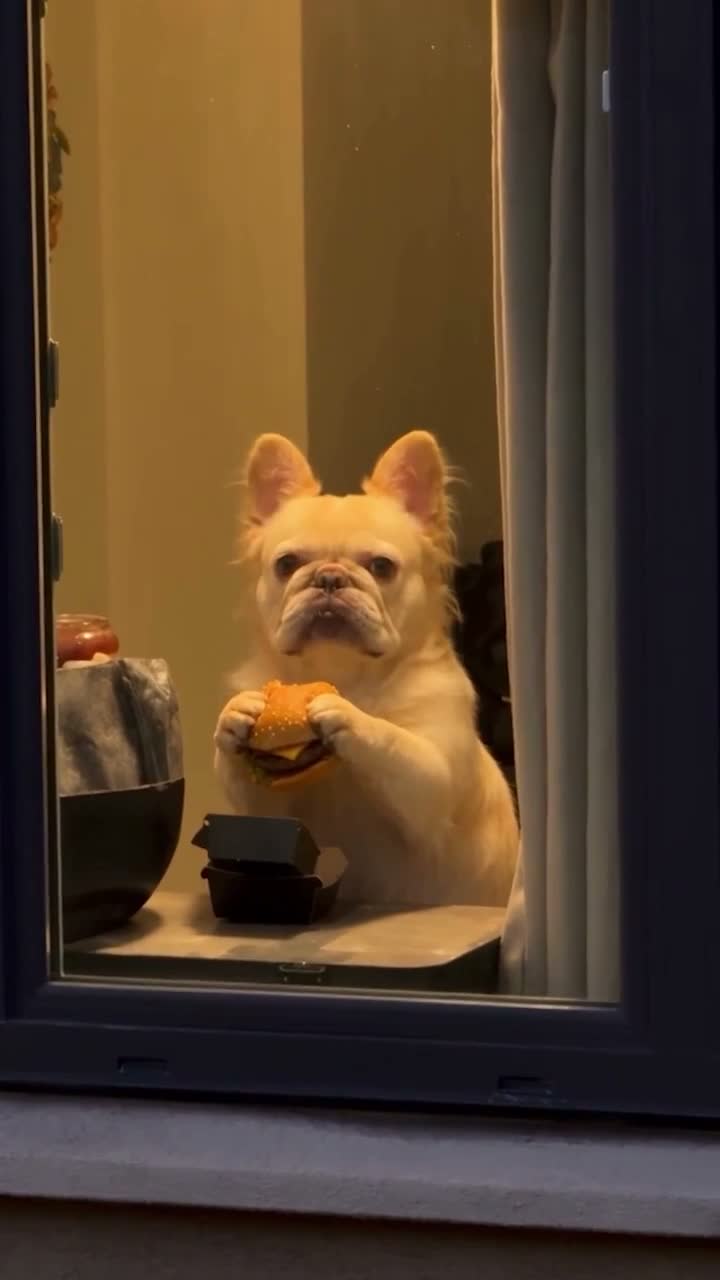
The funny part is the pause between being caught and closing the curtain. A good version lets the viewer understand all three beats: eating, noticing the camera and hiding. Keep the scene simple so the character’s reaction has room to land.
Choose a portrait that can support the action
Use one pet or character image with an unobstructed face, body outline and visible front limbs. A distinctive coat pattern or clear outfit gives you details to check throughout the sequence. Avoid hands holding the pet, a collar hidden by a blanket or several animals in one photo.
You do not need to photograph an animal eating a burger or touching a curtain. The reference supplies the actions and props. The image supplies the complete character. For a custom character with very different proportions, expect more uncertainty around reach and contact.
Plan the eating, glance and curtain beats
Use your own staged footage or a reference you are allowed to download and edit. Choose a version that includes the outside-camera approach, food near the character and the final curtain action. Keep all three beats in one excerpt. If you cut away before the reaction, the ending can feel unmotivated.
A video-reference editor can follow an existing performance. An image-to-video tool can instead animate an invented window scene, but may not preserve this action order. Check the tool’s supported reference inputs before uploading.
Give the character a clear sequence
Adapt the attachment labels to your editor. Preserve one character inside the room so the edit has a single subject to track.
Recreate the window scene from @Video 1 with the complete pet or character from @Image 1 inside the room. Preserve its fur pattern or hair, body shape, clothing and accessories throughout. Follow this order at the source timing: eat the burger, notice and look toward the approaching camera, then reach for and pull the curtain. Retain the window, food, interior, lighting and outside viewpoint. Keep the paws or hands attached naturally to the food and fabric. Do not introduce another character or close the curtain before the glance.Produce the short scene and check the ending
The AI Genjutsu page supplies a prepared reference and one character slot. With another compatible editor, use the same structure explicitly.
- Attach one character image and a clean reference excerpt. Confirm that the ending includes the curtain action.
- Submit the ordered prompt with the source framing and supported duration. Review the quote before generating.
- Watch the clip silently to see whether the joke is understandable without sound. Then check the burger and curtain contacts frame by frame.
- If necessary, add the same reference excerpt’s audio in a timeline editor, keeping the start and playback speed aligned.
- Export the full action and reopen the saved video. Avoid ending the crop or trim before the reaction is complete.
Treat paws, food and fabric as separate checks
A convincing face can distract from a burger floating beside a paw. Pause around the bite and inspect whether the food changes shape or teleports. Then check the reach: the limb should remain connected to the body while the curtain moves. Finally compare the coat pattern before and after the glance.
If the action happens out of order, simplify the prompt around the three beats and remove extra jokes or camera requests. If contact remains poor, choose a less obstructed reference and a clearer character outline. AI output can vary; no prompt guarantees physically perfect paws or fabric.
Questions before you begin
Can I use a person instead of a pet?
The prepared replacement instruction accepts a character’s complete appearance. Choose a clear image and review how the body handles the same food and curtain actions.
Do I need the original trend video?
You need a permitted reference containing the action you want for a reference-based edit. You can film your own scene; then adapt the prompt to its actual props and timing.