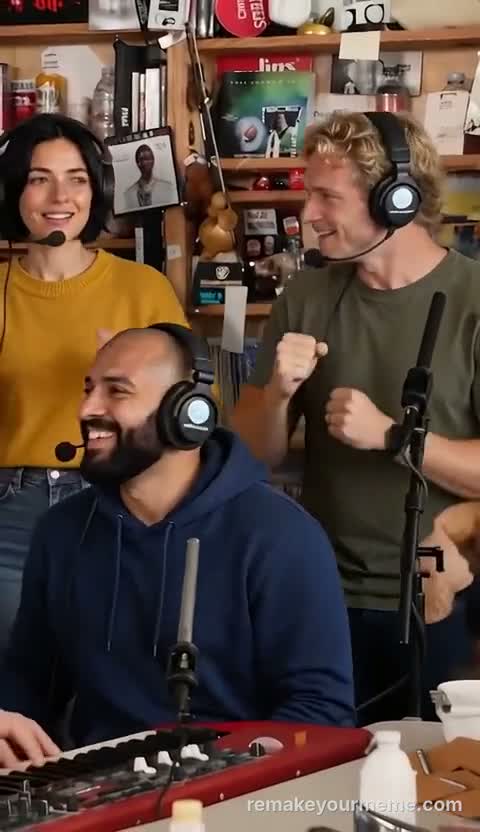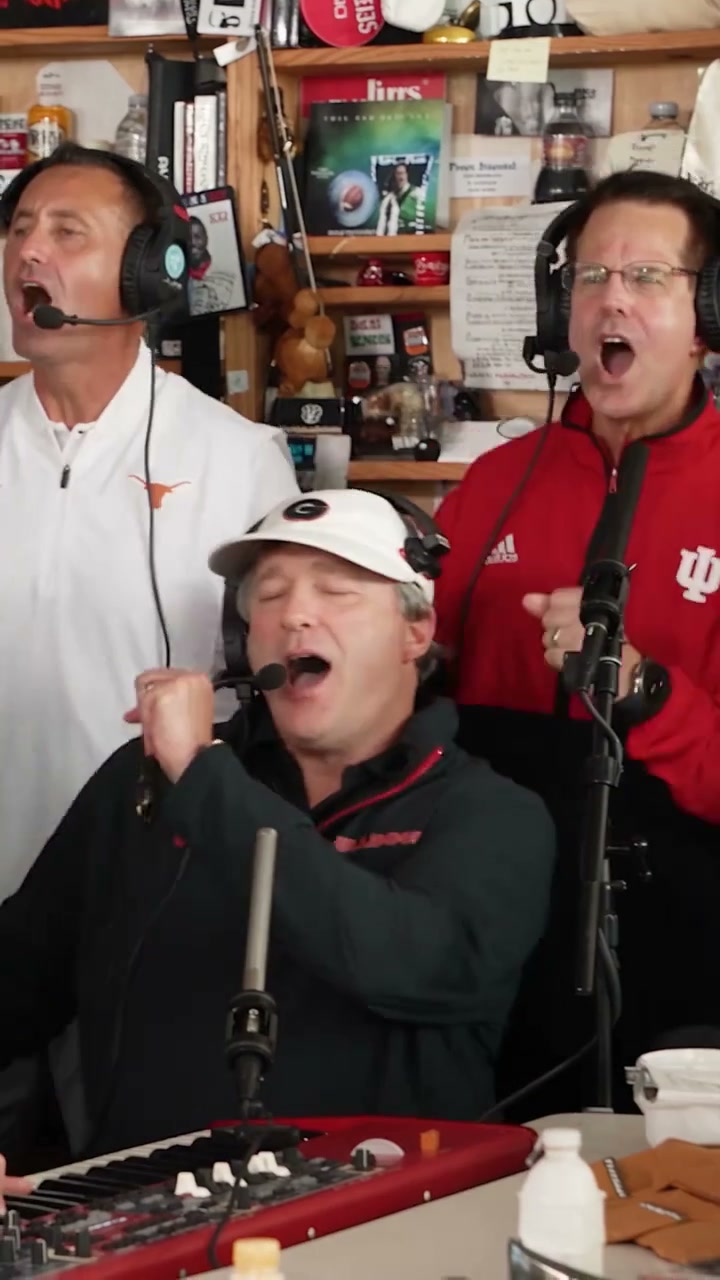
Create a video

Lead singer · required
Saxophonist · optional
Keyboard player · optional
Backing singer · left · optional
Backing singer · right · optional
Settings
Mode
Video length19s
Resolution

Tiny Desk AI: Cast Your Own Band

Turn your character into the lead of a small-room band. Add one photo to start, or cast up to four supporting musicians separately. The performance and reference sound are ready.

What is Tiny Desk AI?

Tiny Desk AI is a photo-driven recast of an intimate band session. Your lead character performs among shelves, microphones and instruments while the reference supplies the close-ups, playing gestures and camera changes. One lead photo is required. Four separate optional slots let you choose the saxophonist, keyboard player and two backing singers. Leave a slot empty to preserve that performer. The output is a new version of the supplied performance with its reference sound, rather than a recording of a song performed by the people in your photographs.

Prepared desk-side band performance

Make your desk-side performance

The scene is prepared; your job is to decide who should appear.

  1. STEP 1

    Cast the lead

    Add a single-person photo in the required lead slot. Use the outfit you want to see in the performance.

  2. STEP 2

    Choose optional musicians

    Add only the supporting roles you want to change. Check each slot label rather than assigning people by upload order.

  3. STEP 3

    Preview, generate and review

    Select a generation mode in Settings, watch its reference preview and review the credit quote. After generation, open My creations and check every camera return before downloading.

Start with one character, or bring a whole cast

Choose the scale of your cast

Start with one character, or bring a whole cast

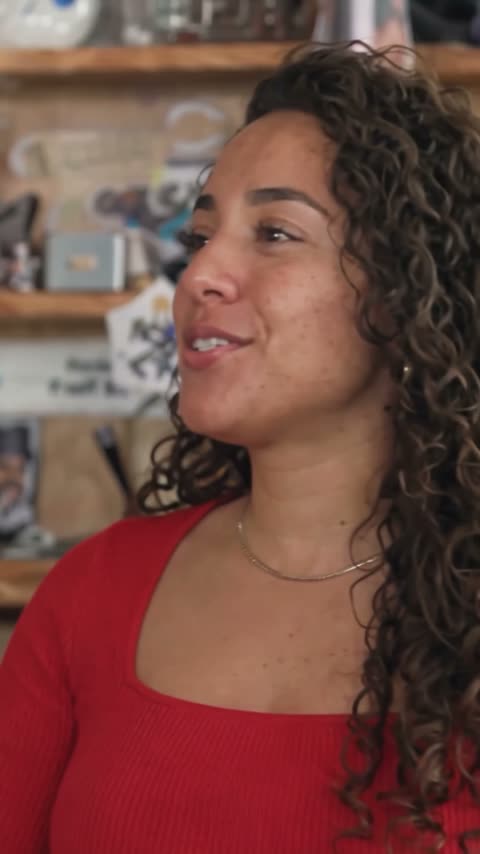
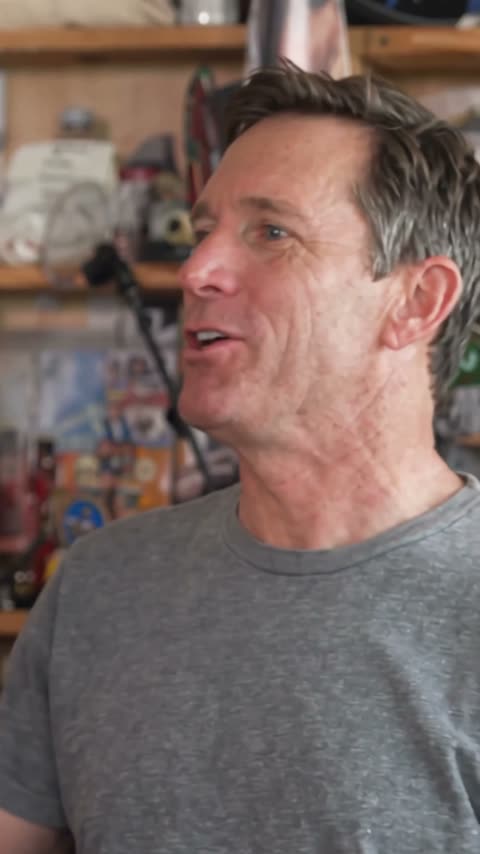
Make a solo character the focus without replacing the surrounding musicians. A clear lead portrait showing hair, shoulders and the desired clothing gives the close-up useful detail. For a group idea, add individual photos to the named band slots. You can replace just the saxophonist or just one backing singer; there is no need to fill all five. Keep each image separate and make the intended outfit visible. This lets you plan a fictional band, a friends’ ensemble or a character series around recognizable silhouettes instead of asking everyone to pose together.
Start with one character, or bring a whole cast

Let the camera move through the performance

The appeal comes from the change in attention: the lead gets a close-up, another player takes the musical focus, and the edit returns to the group. The prepared clip gives those moments a shared room, rhythm and visual continuity. Your images define the cast’s complete appearance and clothing. They do not replace the keyboard, saxophone or music. Watch the selected preview before submitting, especially when changing the mode or clip length; a shorter selection may leave out a moment you wanted.

Let the camera move through the performance

Create a compact band introduction

Use the scene to introduce an original character, share a playful group greeting or add a performance beat to a longer edit. Choosing different outfits can establish each member’s role without adding text over every shot. Review the full result before downloading: a character who looks convincing in the opening can change when the camera returns. Look at hands near instruments, the lead’s mouth and the separation between backing singers. These are checks for choosing a usable result, not promises of perfect identity or musical accuracy.

Create a compact band introduction

Choose the scale of your cast

The best starting point depends on whether you want a character cameo or a whole ensemble.

Lead only

Keep the familiar supporting performance and spend your preparation time on one clear lead image.

Selected musicians

Replace one or more named supporting performers while retaining everyone else.

A different scene

Use a custom reference workflow when your idea needs a new stage, choreography or song.

Review the quote before generating

The workspace shows the credit estimate for your selected mode, resolution and clip. Sign in when you are ready to submit; uploading photos alone does not start a paid generation.

Starter

For your first ideas.

$8.3/month

$100.0 charged yearly

2,400 credits/year

Up to 400 images

GPT Image 2Nano Banana Pro

Up to 133 videos

Seedance 2.5Kling 3.0 Motion Control
  • Up to 4K images and HD videos, depending on the model
  • Image editing, video creation & motion transfer
  • Watermark-free image & video downloads
  • Generation history in your account
Popular40% OFFSave $238.8

Pro

For a steady creative flow.

$30.0/month$49.9/month

$360.0 charged yearly

21,600 credits/year

Up to 3,600 images

GPT Image 2Nano Banana Pro

Up to 1,200 videos

Seedance 2.5Kling 3.0 Motion Control
  • Up to 4K images and HD videos, depending on the model
  • Image editing, video creation & motion transfer
  • Watermark-free image & video downloads
  • Generation history in your account
  • Use credits across image and video models
Best Value50% OFFSave $599.8

Business

For more creations, more often.

$49.9/month$99.9/month

$599.0 charged yearly

48,000 credits/year

Up to 8,000 images

GPT Image 2Nano Banana Pro

Up to 2,666 videos

Seedance 2.5Kling 3.0 Motion Control
  • Up to 4K images and HD videos, depending on the model
  • Image editing, video creation & motion transfer
  • Watermark-free image & video downloads
  • Generation history in your account
  • Use credits across image and video models

Basic

$0

Try before you subscribe

  • 18 one-time signup credits
  • Generation history included
  • Watermarked previews & downloads
  • Up to 3 images or 1 video
  • Watermark-free downloads require payment

Prices in USD; taxes and total shown at checkout. Subscriptions renew automatically; cancel in Billing settings. Subscription credits expire each period; one-time credits never expire. Refund requests: within 72 hours. Eligible refunds deduct used purchased credits and, where permitted, actual non-returned processing fees. Processing fees are capped at 6% of the original purchase amount, excluding separately charged taxes. Terms · Refund Policy.

Annual plans are charged for the full year upfront; the monthly figure is an average. Subscriptions renew automatically until canceled in Billing settings. Request a refund within 72 hours of payment. Eligible refunds are reduced in proportion to purchased credits used. Where legally permitted, we may also deduct actual processing costs not returned to us, capped at 6% of the amount paid before separately charged taxes. We cover these fees for our billing errors or service faults. Separate bonus credits do not reduce your refund. Your statutory rights are unaffected. Terms · Refund Policy

Before you cast the band

Practical answers about roles, sound and the finished clip.

Can I make Tiny Desk AI with just one photo?

Yes. The lead is the only required role. The four supporting slots are independently optional, so your lead can appear with the existing band.

Which performer does each extra photo replace?

The saxophonist is in the navy-and-white top. The seated keyboard player wears a white cap. The backing singers are the white-shirt performer on the viewer’s left behind the keyboard and the red-shirt performer on the right. These labels describe the prepared reference, not the colors your replacement characters must wear.

Does the person in my photo need to hold an instrument?

No. The performance reference supplies the instruments and playing actions. Choose a photo that shows the person’s appearance and clothing without a prop covering their body. The model still needs to reconstruct hands and contact with the instrument, so inspect those details.

What sound does the finished video use?

The finished video uses the reference audio for the selected clip. Uploading a portrait changes appearance; it does not clone that person’s voice, record a new song or make the pictured person sing live.

Can I write my own concert scene here?

This page uses the prepared band scene and its fixed instructions. For a different performance, use the main motion workspace with a suitable video reference and character images. The guide below explains how to label roles in a custom prompt.

Will every character remain identical through the cuts?

Consistency is the aim, and results can vary. Clear separate photos and distinct outfits make roles easier to specify. Check the last band shot as carefully as the first; reject a version if performers merge, switch clothing or duplicate.

Why does the preview change when I choose a mode?

The generation modes can use different prepared lengths from the same performance. Original follows the full reference; the other available modes use the prepared shorter selection. Watch the current preview to check which close-ups and solos it contains, then review the updated quote.

Give your character the microphone

Choose the lead, then add the people you want around them. Keep the remaining band as it is.

Community band recast illustration