Create a video

ModelSeedance 2.5 Edit

Configured for this template

Crowd dance reference · 27.6s

Lead photo
Crowd photo

STORM II AI Crowd Video Maker

One lead. A whole crowd behind them. Create a STORM II AI performance with two visual references and the loaded routine.

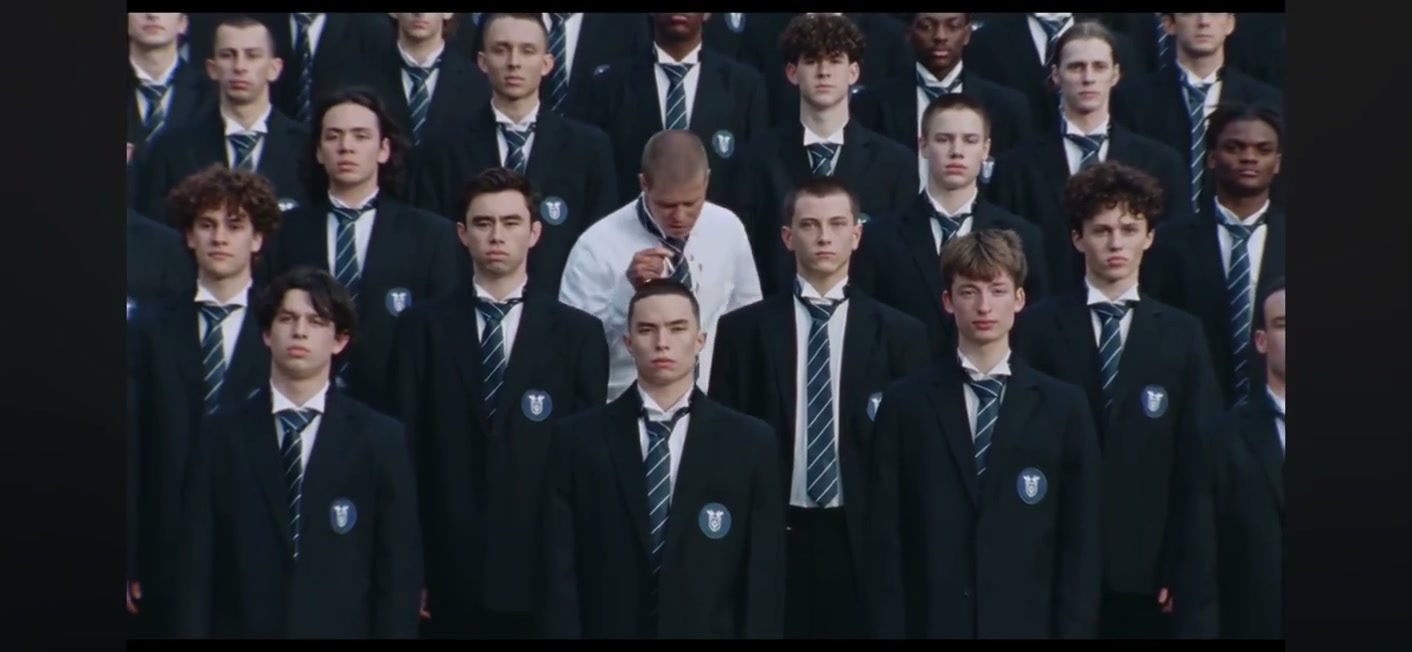
Wide formation of performers in matching dark jackets and ties, with one person in a white shirt standing in front

Build a scene around one unmistakable lead

STORM II AI puts a foreground character in front of a synchronized formation. One photo chooses the lead; a second guides the surrounding cast. The source supplies movement, staging, and timing. Explore a crowd-scale visual idea without photographing everyone together, using the loaded performance as the starting point.

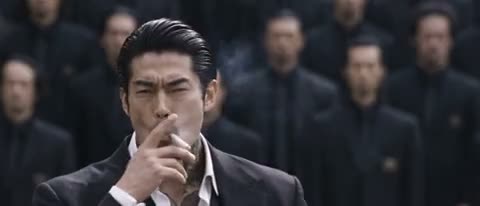
Community example of a suited lead in front of a dark-clothed crowd

Create a STORM II AI scene

Decide who leads, then decide who surrounds them.

  1. STEP 1

    Preview the formation

    Watch the source through the wide shots and synchronized movements. Confirm that this choreography matches the scene you have in mind.

  2. STEP 2

    Set the two appearances

    Upload the lead to Photo 1 and the surrounding-cast reference to Photo 2. Inspect both thumbnails and choose a resolution after checking the current estimate.

  3. STEP 3

    Generate and watch the full scene

    Sign in and submit when ready. Open My creations to review the lead, background figures, and soundtrack before downloading your STORM II AI version.

A lead character against a moving formation

The wide composition turns casting and wardrobe into the main creative choices.

Let the formation carry the impact

The coordinated movement gives STORM II AI its scale. Watch the wide shots to see how the lead stands apart and how the surrounding figures occupy the frame. The preset follows those relationships without promising identical background faces or clothing in every frame. Review the full moving scene before keeping a version.
Let the formation carry the impact

Choose the contrast between lead and crowd

Photo 1 describes the lead, while Photo 2 guides the STORM II AI crowd and may show a group. Choose a readable central character and a coherent supporting look. A contrasting outfit makes the lead more distinct. The second photo is a crowd reference, not an exact individual assignment for every background face.

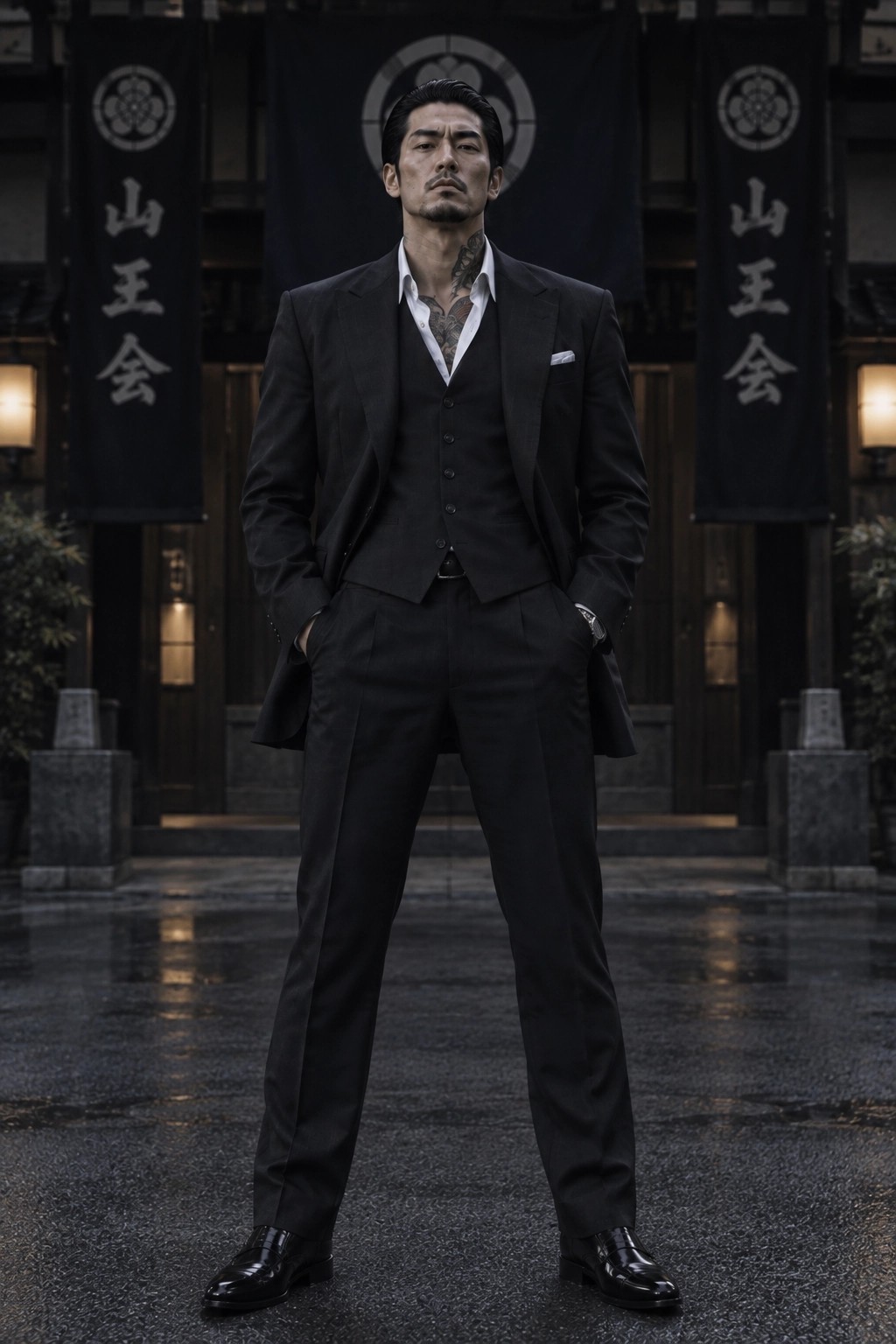
Full-body community reference of a man in a black three-piece suit

When STORM II AI fits the idea

Pick this template for a character reveal, a fictional crew, or a dramatic contrast between one person and a crowd.

A character with presence

Use a distinctive silhouette or costume for the foreground role. STORM II AI gives that character a stage with supporting movement already in place. Check the source framing first so the details you care about are large enough to read.

A coordinated crew concept

Guide the background with a consistent wardrobe or visual theme. The crowd can provide a setting for an original character or a concept for a fictional group. A group reference establishes appearance; it does not guarantee individual casting across dozens of faces.

A contrast people notice quickly

A light lead outfit against darker surrounding figures creates a different impression from a matching uniform. Use the two slots to control that relationship before generating. Compare one deliberate styling change at a time when you make later versions.

Your STORM II AI setup

A two-image template with a fixed performance and selectable output resolution.

A separate lead reference

Show one clearly recognizable person in Photo 1. Include enough of the clothing and body to describe their silhouette; do not rely only on a distant face or a heavily filtered close-up.

A surrounding-cast reference

Photo 2 gives the STORM II AI crowd its visual direction. It can contain more than one person, but avoid an image so dense that clothing and faces become indistinct. More faces do not create more positions in the source formation.

The full reference sequence

The output follows the loaded clip, approximately 28 seconds, with its wide frame. This entrance has no separate duration setting. Plan any shorter excerpt after downloading the result.

Resolution and estimate together

Start at 480p or choose 720p or 1080p. Higher resolution changes file dimensions and the displayed credits. It does not resolve every crowded detail or guarantee a closer facial match.

Audio from the performance

The dedicated STORM II AI workflow is configured to add the reference audio to its result. Playback controls may start muted, so enable sound when reviewing the completed scene.

STORM II AI credits

The estimate beside Generate reflects your current storm ii ai request. Preparing a draft does not spend generation credits; a submitted variation is a new request.

Starter

For your first ideas.

$8.3/month

$100.0 charged yearly

2,400 credits/year

Up to 400 images

GPT Image 2Nano Banana Pro

Up to 240 videos

Seedance 2.5Kling 3.0 Motion Control
  • Up to 4K images and HD videos, depending on the model
  • Image editing, video creation & motion transfer
  • Watermark-free image & video downloads
  • Generation history in your account
Popular40% OFFSave $238.8

Pro

For a steady creative flow.

$30.0/month$49.9/month

$360.0 charged yearly

21,600 credits/year

Up to 3,600 images

GPT Image 2Nano Banana Pro

Up to 2,160 videos

Seedance 2.5Kling 3.0 Motion Control
  • Up to 4K images and HD videos, depending on the model
  • Image editing, video creation & motion transfer
  • Watermark-free image & video downloads
  • Generation history in your account
  • Use credits across image and video models
Best Value50% OFFSave $599.8

Business

For more creations, more often.

$49.9/month$99.9/month

$599.0 charged yearly

48,000 credits/year

Up to 8,000 images

GPT Image 2Nano Banana Pro

Up to 4,800 videos

Seedance 2.5Kling 3.0 Motion Control
  • Up to 4K images and HD videos, depending on the model
  • Image editing, video creation & motion transfer
  • Watermark-free image & video downloads
  • Generation history in your account
  • Use credits across image and video models

Basic

$0

Try before you subscribe

  • 18 one-time signup credits
  • Generation history included
  • Watermarked previews & downloads
  • Up to 3 images or 1 video
  • Watermark-free downloads require payment

Prices in USD; taxes and total shown at checkout. Subscriptions renew automatically; cancel in Billing settings. Subscription credits expire each period; one-time credits never expire. Refund requests: within 72 hours. Eligible refunds deduct used purchased credits and, where permitted, actual non-returned processing fees. Processing fees are capped at 6% of the original purchase amount, excluding separately charged taxes. Terms · Refund Policy.

STORM II AI FAQ

Photo roles, timing, sound, and your STORM II AI result.

Does STORM II AI need a picture of an entire crowd?

STORM II AI needs a second image to guide the surrounding performers, in addition to the lead photo. That reference can show a group. It supplies visual direction for the crowd rather than an exact one-to-one assignment of every face in the formation.

What should Photo 1 show in STORM II AI?

For STORM II AI, use one person or authorized character with a readable face and visible outfit. The foreground role receives the most attention, so choose a photo you would want viewers to recognize. A waist-up or wider view can explain more of the appearance than a tiny headshot.

Can STORM II AI change the dance?

STORM II AI reuses the routine shown in its loaded video. Replacing the two photos changes the requested appearances, not the underlying choreography. For a different movement sequence, bring your own reference to the main Genjutsu AI workspace.

Can I assign a different photo to every crowd member?

The STORM II AI page has a lead slot and one surrounding-cast slot. It has no per-person crowd editor. If you need a template with optional individual background photos, explore Burning Bridges AI and its different performance instead.

How does STORM II AI handle clothes?

STORM II AI photos guide appearance, including wardrobe and overall style. The moving sequence can reinterpret seams, accessories, hands, and repeating details. Choose readable clothing and inspect the result during turns and synchronized gestures, where differences are easier to miss in a thumbnail.

How long is a STORM II AI video?

The STORM II AI source runs about 28 seconds and determines the output length and framing. A higher resolution does not extend the choreography. Download a completed result and trim it separately if your post only needs a shorter passage.

Does STORM II AI include sound?

STORM II AI is arranged to restore the original reference soundtrack after the visual edit. Listen to the completed video with playback sound enabled. If an audio-processing retry is offered on the result, it concerns the existing clip rather than a new visual generation.

Is STORM II AI free to try?

You can inspect the STORM II AI reference and prepare the two photos before submission. Generating requires sign-in and a sufficient credit balance for the current estimate. Each additional submitted version is a separate request; selecting another image alone does not start one.

Are the STORM II AI examples results from this site?

STORM II AI reference and community examples illustrate the source performance and possible casting directions. They are not proof of results generated on AI Genjutsu. Evaluate your own output against your pictures and the reference rather than assuming an identical finish.

Can I share a STORM II AI crowd video?

Use pictures you own or have permission to transform, and avoid presenting a generated crowd as a real event. Check your rights to the footage and soundtrack before publication. The template does not provide those permissions for every destination.

Put your lead in STORM II AI

Choose the person in front and the visual style of the crowd.

Motion reference of a uniformed crowd formation with a foreground person in a white shirt