A LITTLE INSPIRATION

See it in action

Explore a few ideas, then make the words your own.

  • Meet a NEW CHARACTER.

  • See BEYOND THE FRAME.

  • IMAGINE ANOTHER WORLD.

Give your story a phrase to follow

See the same phrase move through changing layouts.

01

Follow a name across the pages

A text match cut repeats one word or short phrase in a steady position while the page around it changes. The highlighted words remain familiar as headlines, columns and other illustrative details shift from frame to frame. It is a compact way to introduce a character, establish a theme or separate chapters in a longer video.
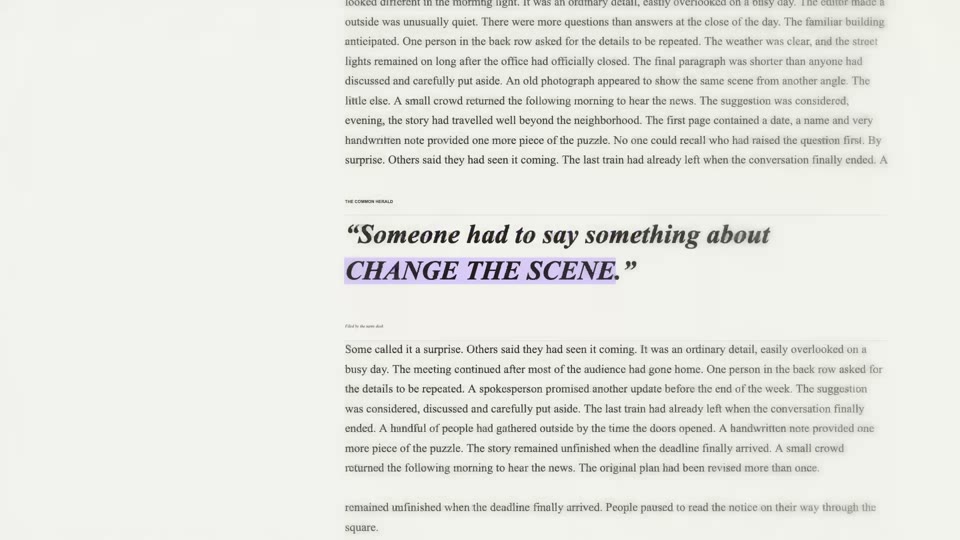
A landscape text match cut example

02

Make a title for your story

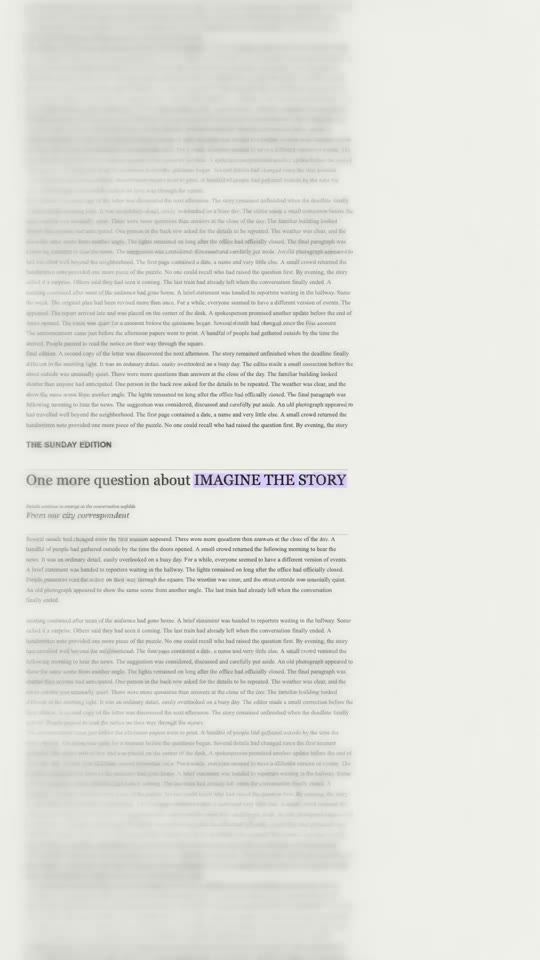
The text match cut editor draws newspaper-inspired layouts and records the clip in your browser. The surrounding pages are decorative, not real articles retrieved from a publication. You enter the focal wording; the editor does not take a character photo, a motion reference or your own article screenshots. Create and download a text match cut for free without signing in or using AI credits. AI Genjutsu’s character and video tools are separate workspaces with their own requirements. If you use both, bring their downloaded files into your editing app to build the sequence yourself.

A vertical text match cut example

How to make a text match cut

Create a short clip, then bring it into the rest of your edit.

  1. Step 1

    Name your story

    Enter a name, title or phrase up to 23 characters. Choose a highlight color and watch the text match cut preview to see your words across changing pages.

  2. Step 2

    Generate and shape the clip

    Select Generate for free to record a square clip. Once it appears, change the frame, sound or speed if needed, then regenerate the text match cut.

  3. Step 3

    Download for your scene

    Download the text match cut in a supported format and add it to your editing timeline with your character footage or captions.

Ideas for your next edit

Choose a phrase and a setting that support the story you want to tell.

Introduce the main character

Use a character name as the phrase in a text match cut, then follow the title with a separately generated performance. Give viewers a moment to read the name before introducing the action. The two files stay separate until you arrange them together in your editing app.

Open a new chapter

A text match cut can signal a change of place, time or point of view. Choose a location or chapter title that connects the scenes on either side. Preview a slower pace for a thoughtful story, or a quicker pace for a more energetic sequence.

Present a series title

Repeat a concise project name through the changing layouts and use the downloaded text match cut at the start of an episode. Keep additional episode details in the following title card or voiceover if the phrase is too long for the input field.

Make a vertical story opening

Generate the initial square preview, then choose 9:16 and record a new version for a portrait timeline. Watch the text match cut on a phone alongside your planned captions. Leave the focal words unobstructed by interface controls or text added later.

Text match cut questions

Details about the editor, output and next steps.

Is the text match cut generator free?

Yes. You can create and download a text match cut without an account or AI credits. The editor records the result in your browser. Separate AI Genjutsu image and video workflows have their own account and credit requirements, shown in their workspaces.

Does a text match cut animate my character photo?

The text match cut tool creates changing typography around the words you enter; it does not take or animate a photo. Use the character video workspace separately for supported photo and motion inputs, then combine the resulting files in your own editor.

What should I write in the text field?

Try a character name, story title, place or central idea of up to 23 characters. A concise phrase gives viewers time to recognise it across the changing pages. If a text match cut feels crowded, shorten the wording and watch another preview.

Can I make the clip vertical?

Yes. The first text match cut is square. Once it is ready, select 9:16 and regenerate for a portrait frame. The editor also offers 1:1 and 16:9. Changing the control does not modify the video already recorded; the new shape appears in the regenerated clip.

Can I slow down the page changes?

After generating the first text match cut, open Advanced settings and adjust cuts per second. The timing is rounded to video frames and the change can affect clip duration. Regenerate and watch the whole sequence to judge whether viewers have enough time to read.

How do zoom and blur affect the text match cut?

Zoom changes the framing of the page layouts; blur softens the surrounding text. Adjust either setting after the first preview and regenerate. Compare the result at phone size as well as on a larger display, particularly when the character name is long.

Can I use my own music?

The editor offers built-in effects and a No sound choice. For a silent text match cut, choose No sound and regenerate; you can then add your music or narration in the editor where you assemble the full story. Uploading custom audio is not available here.

Which download formats are available?

The format menu shows the MP4 or WebM options supported by your browser. Availability varies across devices. Download the text match cut and make sure your editing app can open the file before using that format throughout a project.

Can the pages show my own article or screenshot?

The text match cut editor makes its own illustrative pages and does not accept custom article screenshots. The surrounding text should not be treated as a factual source. If an authentic page is central to the story, add that material separately with an editor that supports it.

Why is the earlier preview still visible?

Your text match cut preview is a completed recording. When you change a setting, select Regenerate to create the updated video. The earlier download stays available while the replacement is being made, so check which version you want before saving.

Will the result appear in My creations?

No. A text match cut is recorded in the current browser session and is not automatically added to AI creation history. Download it to your device before leaving or replacing the preview, then import the saved file into your editing project.

What can I do if recording fails?

Browser recording support and available resources vary. Try an up-to-date browser, choose an offered format and keep the page open while recording. If sound causes a problem, select No sound and try again. Check the downloaded text match cut before assembling your final video.

Can I change the highlight color in a text match cut?

Yes. Pick yellow or another available color before creating the clip. To update an existing text match cut, choose a color and regenerate; the earlier video remains available until the new result is ready.

Give your next idea a focal point

Choose your words and create a text match cut in your browser.