Create a video

Required photos1
Settings
Mode
Video length29s
Resolution

Toosie Slide AI Video Generator

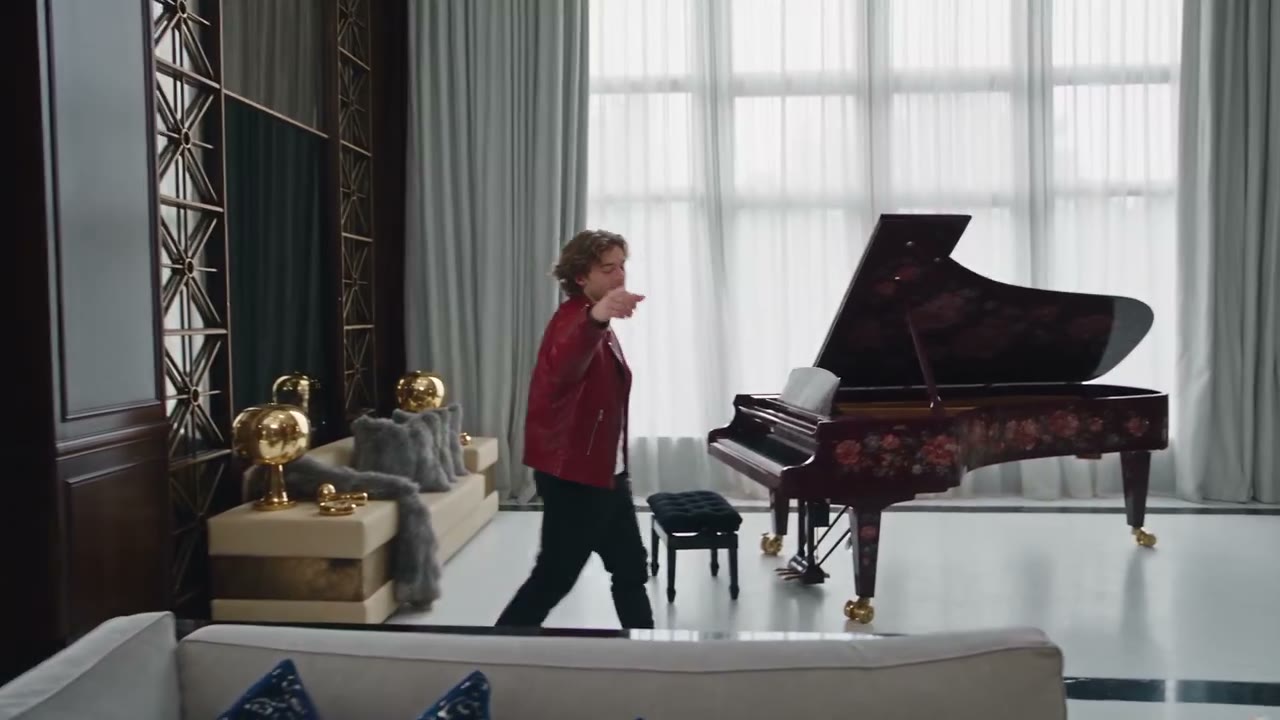
Use one portrait to join a prepared piano-room dance and walk.

Toosie Slide AI video ideas

What is Toosie Slide AI?

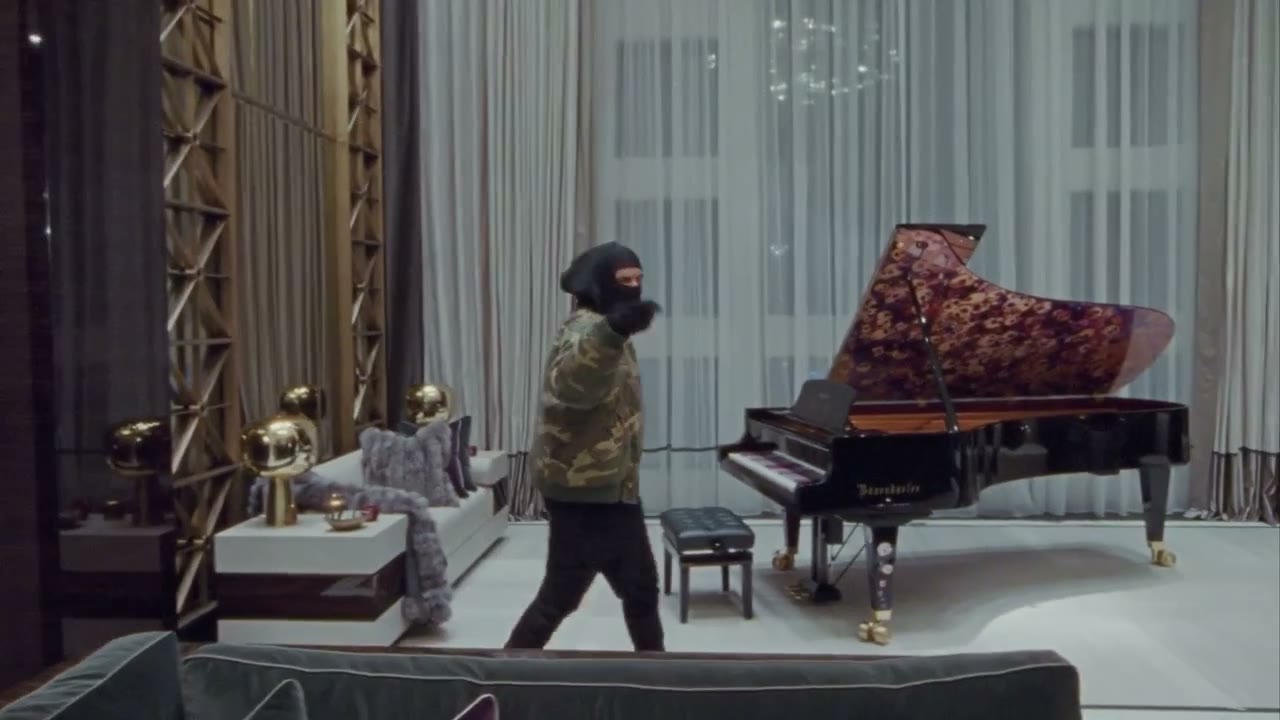
Toosie Slide AI creates a dance video from one person photo and a prepared reference. The foreground performer steps and gestures beside a grand piano, then moves into an adjoining room. Your image guides that dancer; the interior, camera path, timing and background person follow the source footage. Watch the Toosie Slide AI preview to see the performance before selecting a length. The fixed reference supplies the motion, so the page does not ask you to record the routine or upload a separate dance video. The model generates an interpretation of the selected person in the scene; facial features, clothing and the exact shape of moving limbs can change across the take.

Toosie Slide AI example

How to make a Toosie Slide AI video

Choose a Toosie Slide AI dancer photo and review the selected performance.

  1. STEP 1

    Add a dancer

    Upload one individual photo, ideally showing the complete outfit.

  2. STEP 2

    Select the length

    Compare the opening Toosie Slide AI selection with the full performance.

  3. STEP 3

    Generate and inspect

    Watch the footwork, identity and sound in the completed clip.

Explore Toosie Slide AI

Prepare for a moving performer, changing poses and continuity throughout the dance.

Prepare a Toosie Slide AI dancer photo

For Toosie Slide AI, start with a clear individual picture of the person who should appear in the foreground. A wider or full-body view can show the outfit and body shape used during the stepping movements. Keep the face and hair readable where possible, and use a photo you have permission to upload. The Toosie Slide AI reference partly obscures the performer’s face at some moments. A strong portrait cannot make every angle visible, but it helps you compare recognizable features when the camera reveals them. There is one required dancer role; the person in the background has no separate photo slot and continues to follow the reference.
Prepare a Toosie Slide AI dancer photo

Compare Toosie Slide AI scene lengths

Original follows the complete Toosie Slide AI reference of approximately 29 seconds, including the move into the adjoining room. Economy and Standard use a prepared opening selection of about 15 seconds centered on the piano-room routine. The workspace shows the rounded duration and the current estimate for the selected settings. Choose a Toosie Slide AI length by watching the active preview rather than relying only on the number of seconds. The shorter options share the prepared selection but use different generation settings; Original keeps the later movement. The page does not expose a custom dance editor or a frame-by-frame trim control, so the reference determines the steps and camera path.

Toosie Slide AI example

Review the Toosie Slide AI movement

When Toosie Slide AI completes, watch the dancer from the first step through the end of the selected segment. Check feet near the floor, hands during gestures and the outline of the outfit against the piano and doorway. A clear first frame can still be followed by changes in clothing or proportions as the body turns. Compare the face and hair where they are visible without expecting the camera to show details that the reference obscures. Toosie Slide AI attempts to restore the selected source audio after visual generation, so listen to the delivered file. If a different picture would make the subject easier to recognize, review the current estimate before creating another take.

Toosie Slide AI reference

How the Toosie Slide became a dance trend

The dance was shared online before Drake released the full song.

  1. Early 2020: a dance takes shape

    Dancer Toosie told GQ that Drake sent him a song idea and asked for a dance. Toosie and fellow dancers contributed movements to the routine. Read Toosie’s interview

  2. The social clip spreads

    According to the same interview, a clip of the group dancing appeared on TikTok and Instagram in late March 2020, before the full release. Other dancers then made their own versions.

  3. The Toosie Slide AI adaptation

    This prepared video uses a dance scene as its motion reference. Toosie Slide AI guides the foreground performer with your photo; it does not create an official music video or guarantee a particular soundtrack.

Toosie Slide AI questions

How many photos does Toosie Slide AI require?

One individual photo guides the foreground dancer. Choose a clear face and, if available, a view that shows the outfit and body for the wider steps.

Can I assign the background person?

No separate photo slot is offered for that person. The Toosie Slide AI reference continues to guide the background while your image guides the featured dancer.

Do I need to upload a dance video?

No. The piano-room performance and camera movement are included in the fixed preset. This page asks you for the dancer photo.

Which Toosie Slide AI mode includes the walk?

Original follows the roughly 29-second source, including the later room transition. Economy and Standard use the prepared opening selection of about 15 seconds.

Can I change the steps or the room?

The choreography, piano, interior and camera follow the reference. There is no separate control on this page for redirecting the routine or selecting another room.

Will the dancer’s face always be visible?

Some moments in the Toosie Slide AI reference partly obscure the face. The model also interprets turning and movement, so individual facial details can vary.

Is a full-body photo required?

One person photo is required, but a full-body image is not described as a separate requirement. When available, a clear wider view can provide more context for the outfit and steps.

Does Toosie Slide AI preserve the music?

The workflow attempts to restore the selected reference audio. Listen to the completed file and check the rights needed for any sound you plan to distribute.

What should I check in the result?

Review foot placement, hands, hair and clothing through turns. Inspect the doorway transition if you chose the full source, and compare the generated dancer with your uploaded photo.

How can I compare the two shorter modes?

Both use the opening Toosie Slide AI selection, with different generation settings. Compare the available options and current estimate shown in the workspace before you submit.

Can I use this as a clip in another edit?

You can plan it as a fictional dance segment in a larger video. Review the finished take and obtain the permissions needed for the portrait and any accompanying audio.

Does the short version contain the later room?

Economy and Standard use the prepared opening selection. Watch the active Toosie Slide AI preview to check where it ends; choose Original when the later room transition is essential to your edit.

Can I choose the camera angle?

The camera path follows the supplied Toosie Slide AI reference. Preview the performer beside the piano and during the walk to see which angles are available in the selected length.

What if the dancer is hard to recognize?

Compare the visible face and outfit with your original image. A clearer individual photo may give the model stronger appearance cues; check the current estimate before generating another take.

Create with Toosie Slide AI

Choose the dancer and preview the piano-room performance.

Toosie Slide AI example