Create a video

Male role · Photo 1
Female role · Photo 2

Make your pair the heart of Zombie AI

Recast a tense scene and its warm memories with Zombie AI. Two ordinary portraits become the story’s leads, with the infected look, cuts, and sound prepared.

Zombie AI casts your pair in a complete short story

The scene opens in a dim room with a distressed man facing an infected woman, then shifts to warmer memories of the couple. Zombie AI uses your two portraits to recast those roles across the whole sequence. The acting, cuts, and camera are already supplied by the reference. This gives you a way to explore a dramatic character pairing without filming multiple scenes or assembling the transition yourself. Watch the original before deciding who belongs in each role.

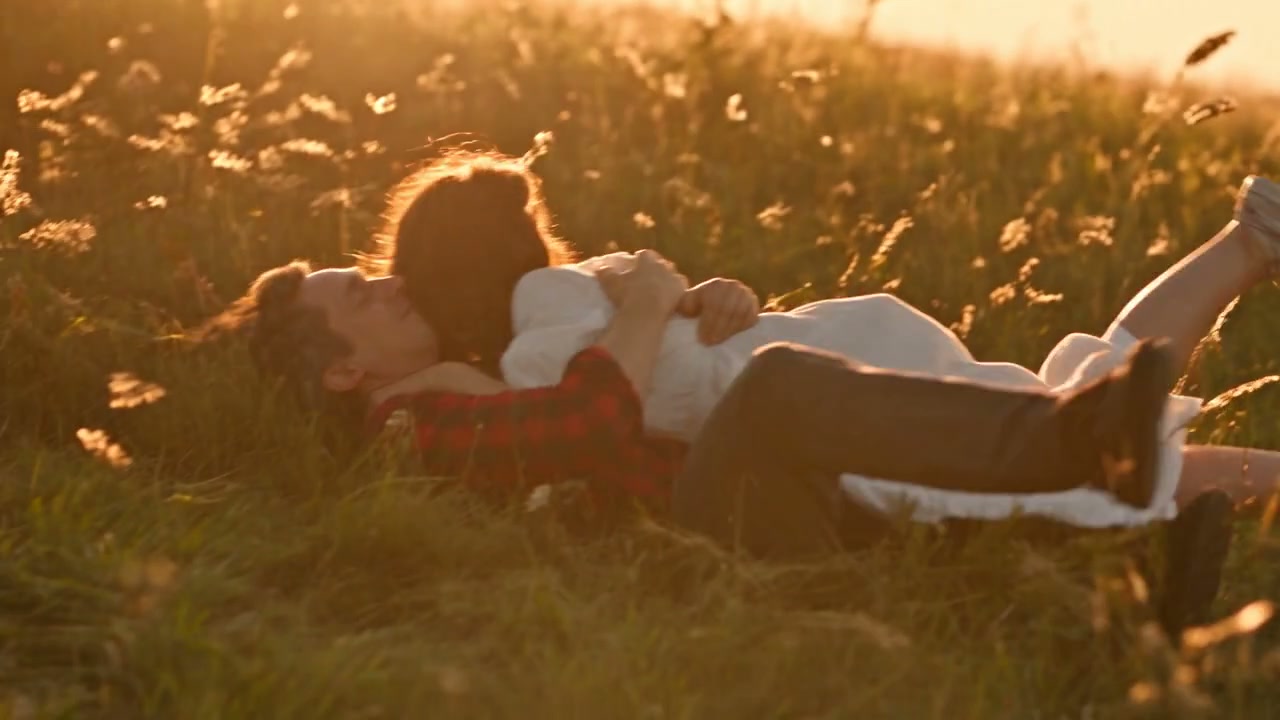
A community Zombie AI edit contrasts a dim indoor confrontation with the couple’s golden-field memories.

Create your Zombie AI video

The performance is prepared. Start with 2 photos and review the roles before submitting.

  1. STEP 1

    Choose your characters

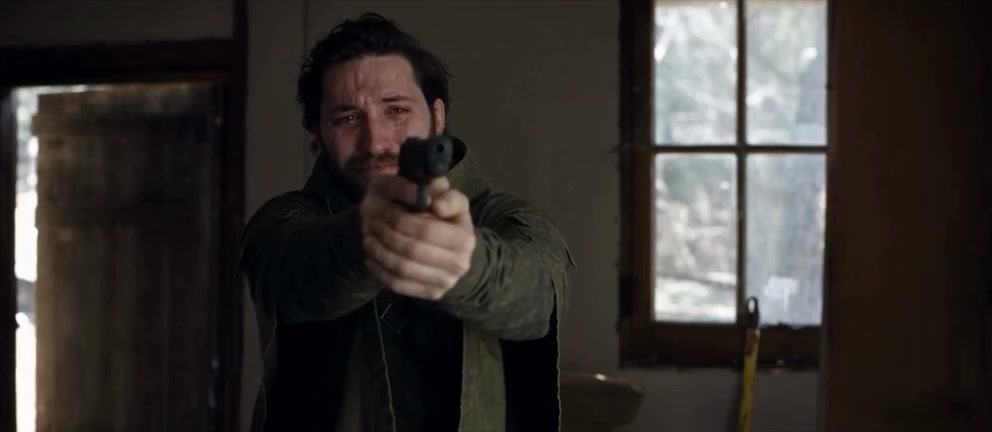
    Photo 1 becomes the man holding the gun. Photo 2 becomes the woman in both her infected and healthy scenes. Choose two individual portraits with clear faces, hairstyles, and clothing. Use a normal, healthy appearance for Photo 2; a separate zombie makeup photograph is unnecessary.

  2. STEP 2

    Review and generate

    Choose an available resolution in Settings, then read the credit cost on Generate. Sign in when prompted and submit once your 2 photos are ready. Selecting or replacing an image only updates your input.

  3. STEP 3

    Watch your finished take

    Open My creations and play the complete Zombie AI result with sound. Pay attention to the change from the dim confrontation to daylight memories and the final embrace. Use the download action to save the version you want to keep.

See the Zombie AI idea in motion

Explore the casting possibilities, then use the original preview above to check the performance this preset follows.

Two role slots carry the relationship

Photo 1 belongs to the gun-holding man and Photo 2 belongs to the woman. Zombie AI keeps those assignments attached to the characters as angles and screen positions change. Choose individual photographs with readable expressions, visible hair, and the clothes you want. Their original backgrounds can differ because the loaded clip supplies both the room and the outdoor scenes. Review the slot labels before generating; the order communicates who takes each part in the story.
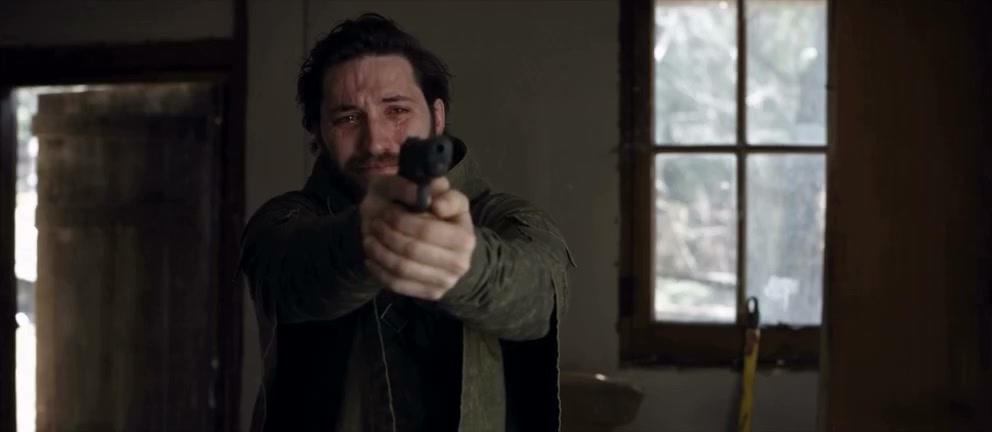
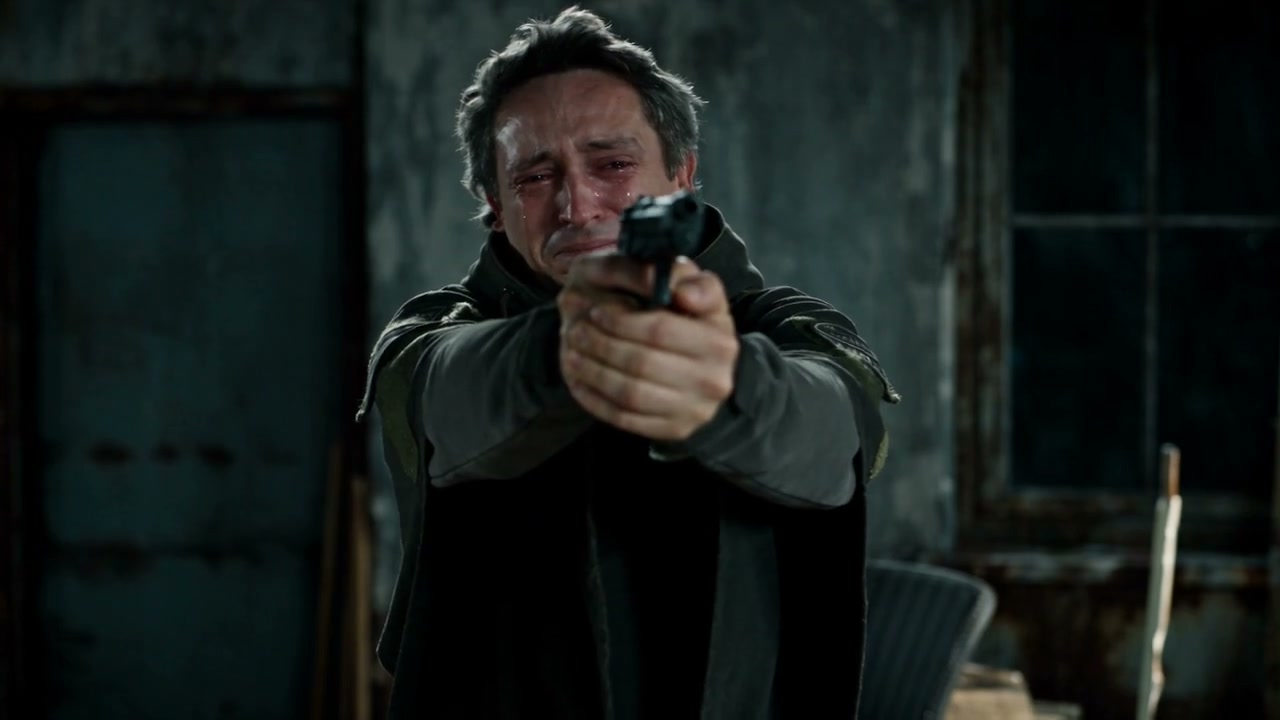
A source still shows the male character’s face, hairstyle, and upper body for the first photo role.
First upload: the man shown in this source still

One portrait, infected and healthy appearances

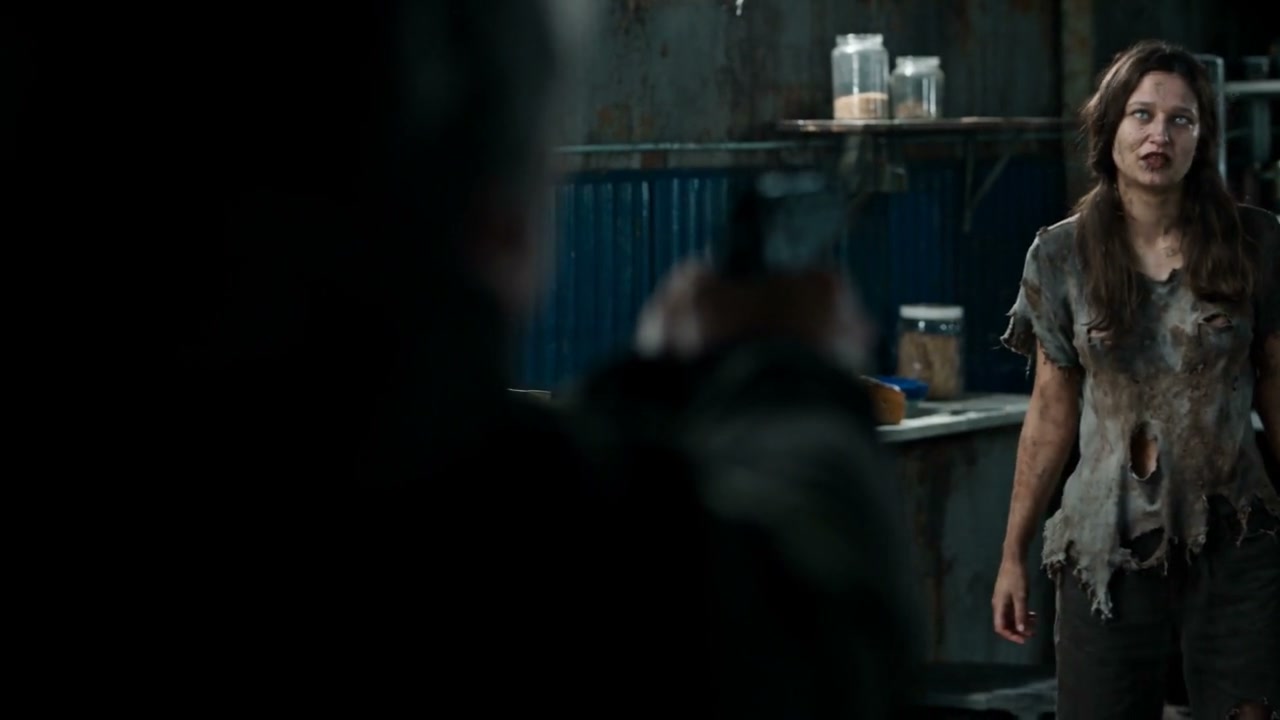
Photo 2 does not need a horror makeover. Zombie AI starts from an ordinary portrait and requests the infected version only where the reference story calls for it. The same identity should return in the warm memories. This contrast is the key creative effect, so both lighting conditions matter when reviewing the result. Check the eyes, hairstyle, and clothing across the change, and avoid judging likeness solely from a heavily shadowed opening shot.

Community edit detail: the indoor confrontation

Keep the emotional transition intact

The movement from confrontation to running and embracing outdoors gives Zombie AI its narrative shape. The template follows the source order, wide framing, pace, and soundtrack while using your chosen pair. Faces and hands can change when characters overlap or turn away, so play through the transition and embrace. The result is a generated interpretation of the story. Consistent expression and exact gestures are goals to review, rather than outcomes guaranteed by an attractive first frame.

Community edit detail: the couple before infection

Find your angle on Zombie AI

The performance stays recognizable while your casting choice gives it a different personality. Choose a use that fits the scene you can preview.

A personal post with a recognizable lead

Use your own subject or someone who has agreed to the edit. Zombie AI gives the post a prepared action. Choose a look that fits the occasion, and present the result as an AI recreation when sharing.

An original character in a moving scene

Bring a character design you are entitled to use into Zombie AI. A clear silhouette and visible outfit help communicate the look. Review proportions throughout the movement before using the clip in a larger creative project.

A controlled comparison of looks

Compare another look using the same Zombie AI performance. Replace the photo you want to change before submitting a new version. Each generation uses its own credits; replacing an input or watching an available result does not start another job.

Credits for your Zombie AI edit

Use the amount displayed on Generate for the selected request. The general plan examples below may describe other models or video lengths.

Starter

For your first ideas.

$8.3/month

$100.0 charged yearly

2,400 credits/year

Up to 400 images

GPT Image 2Nano Banana Pro

Up to 133 videos

Seedance 2.5Kling 3.0 Motion Control
  • Up to 4K images and HD videos, depending on the model
  • Image editing, video creation & motion transfer
  • Watermark-free image & video downloads
  • Generation history in your account
Popular40% OFFSave $238.8

Pro

For a steady creative flow.

$30.0/month$49.9/month

$360.0 charged yearly

21,600 credits/year

Up to 3,600 images

GPT Image 2Nano Banana Pro

Up to 1,200 videos

Seedance 2.5Kling 3.0 Motion Control
  • Up to 4K images and HD videos, depending on the model
  • Image editing, video creation & motion transfer
  • Watermark-free image & video downloads
  • Generation history in your account
  • Use credits across image and video models
Best Value50% OFFSave $599.8

Business

For more creations, more often.

$49.9/month$99.9/month

$599.0 charged yearly

48,000 credits/year

Up to 8,000 images

GPT Image 2Nano Banana Pro

Up to 2,666 videos

Seedance 2.5Kling 3.0 Motion Control
  • Up to 4K images and HD videos, depending on the model
  • Image editing, video creation & motion transfer
  • Watermark-free image & video downloads
  • Generation history in your account
  • Use credits across image and video models

Basic

$0

Try before you subscribe

  • 18 one-time signup credits
  • Generation history included
  • Watermarked previews & downloads
  • Up to 3 images or 1 video
  • Watermark-free downloads require payment

Prices in USD; taxes and total shown at checkout. Subscriptions renew automatically; cancel in Billing settings. Subscription credits expire each period; one-time credits never expire. Refund requests: within 72 hours. Eligible refunds deduct used purchased credits and, where permitted, actual non-returned processing fees. Processing fees are capped at 6% of the original purchase amount, excluding separately charged taxes. Terms · Refund Policy.

Zombie AI: before you create

Practical answers about the input, preset, and finished video.

What do I upload for Zombie AI?

Prepare 2 photos, with one subject per slot. Photo 1 becomes the man holding the gun. Photo 2 becomes the woman in both her infected and healthy scenes. The reference is included, so no separate performance recording or location image is required. A collage cannot reliably communicate separate role assignments; use individual images and check their placement before generating.

Should I upload a zombie face for the second role?

Use an ordinary portrait. The instructions create the infected appearance in the dark scenes and use the same person’s healthy appearance in the memories. A heavily altered horror image makes the everyday identity harder to establish. Keep the face, hairstyle, and intended clothing visible in the input.

Can I rewrite the ending or add more characters?

This preset follows one supplied sequence with two assigned roles. There is no alternate ending or additional cast selector. Choose Zombie AI when you want this confrontation and memory structure. For a different plot, start a separate request in AI Video Maker or bring your own reference to the main workspace.

Do I have to write a Zombie AI prompt?

No. The template already carries the role instructions and a configured Seedance 2.5 Edit model. The compact input panel keeps those technical controls out of the way. Choose your photos and resolution here. For custom wording or a different reference, use the main AI Genjutsu workspace; a restored draft keeps its previously saved inputs.

Can I change the duration or camera format?

This preset follows its wide reference, which runs about 26.5 seconds. The resolution control changes the requested output quality, without choosing another performance or extending the scene. If a different length or composition is essential, start with another permitted source in the main workspace instead of trying to change this fixed routine.

How does sound work in Zombie AI?

The result uses the audio from the reference rather than a newly generated song. Page previews show examples; check the reference soundtrack on your completed result. After generation, check the completed video in My creations. If it reports an audio-processing issue, review the available recovery action before sharing.

Can I preview Zombie AI without spending credits?

Yes. Watching the original and preparing your photos does not start a generation. A submitted request requires sign-in and enough credits for the price displayed on Generate. Resolution and the request details affect that amount. A new attempt is another generation, so check the input and estimate before deciding to run it again.

How can I judge whether the result worked?

Play the video through to the end and check the change from the dim confrontation to daylight memories and the final embrace. Look for changes to faces, clothes or fur, and overlapping limbs. A sharp thumbnail only represents one moment. AI editing can vary across frames, so keep a take that works as a complete sequence, including its soundtrack.

Where can I save my Zombie AI result?

Use My creations in this workspace or open your video history. Available completed videos can be played and downloaded using the actions provided for your account. Replaying or downloading an existing result does not generate a new take. Check the full scene and audio before saving the version you intend to share.

What should I check before sharing the clip?

Use pictures you have permission to edit, and consider the people or characters represented in the result. Access to a preset does not grant rights to the reference footage or soundtrack. Confirm the permissions for your intended publication and follow the destination platform’s rules for AI-created media. Community adaptations on this page are examples of the visual idea, not promises of an identical result.

Your cast. Your Zombie AI take.

Choose 2 photos, check the original performance, and bring your own appearance to the scene. Your next step starts in the workspace above.

The Zombie AI source cuts from a man facing an infected woman to warm scenes of the couple together.