Create a video

Main character · Photo 1
Reveal look · Photo 2 (optional)

Upside Down AI Video Generator

Make a hand-led transition into a second appearance. Upload one photo for Upside Down AI; choose the appearance and let the prepared scene supply the performance. This template creates a silent video.

What is Upside Down AI?

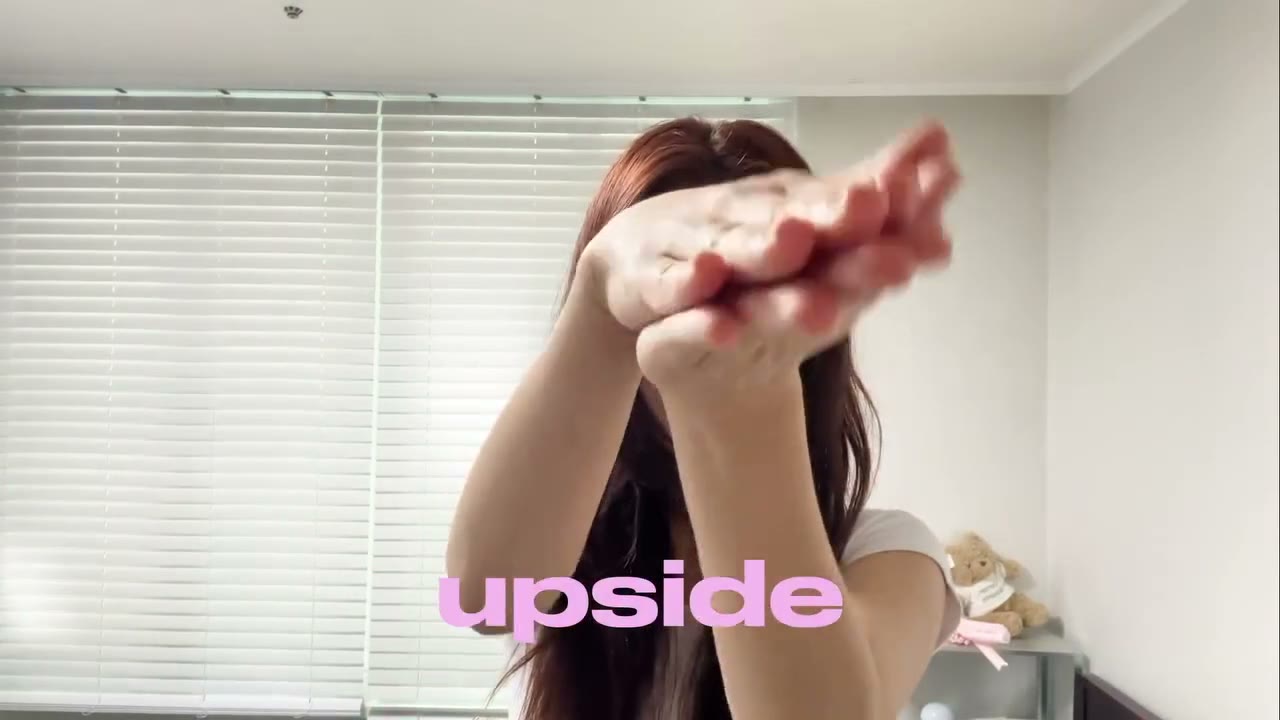
Upside Down AI is a photo-driven video effect for a hand-led transition into a second appearance. In the prepared scene, the subject turns a palm indoors, covers the lens and reappears outside for the reveal. AI Genjutsu lets you cast the replacement subject from one photo, using the complete appearance rather than asking you to record the performance. You can add up to 1 optional reference in the labeled additional slots. The reference video provides the movement, camera work and setting. The prepared clip is approximately 9.9 seconds long; its framing and sequence guide your output. This reference is silent, and the finished video has no added soundtrack. Watch the sequence here to see precisely which version of Upside Down AI this page makes.

Upside Down AI reference showing a hand-led transition into a second appearance

How to create Upside Down AI

Use the Upside Down AI workspace above. The reference is already selected, so you can focus on your images.

  1. STEP 1

    Choose your Upside Down AI references

    Add one photo to the labeled slots. You can add up to 1 optional reference in the labeled additional slots. Look at the preview and check that every upload matches the intended role. Replace an unclear image before continuing.

  2. STEP 2

    Review settings and generate

    Confirm the selected Upside Down AI template and available resolution, then review the credit quote. Sign in to submit when the inputs are ready. Uploading a photo alone does not start a paid video job.

  3. STEP 3

    Review the completed Upside Down AI clip

    Open the result in My creations and watch the entire sequence. Examine the hand covering the lens, the reveal outfit and identity on both sides of the transition, then download the version you want to keep. A new attempt uses a new generation job.

Create your version of Upside Down AI

Choose the subject, keep the recognizable performance and make the scene useful for your own idea.

Give Upside Down AI your chosen appearance

Use one photo throughout, or provide a second look for the same person's reveal. Upside Down AI uses visual references for the subject's recognizable details, so the image you choose is an important creative decision. Choose a clear main-person image; if using the optional slot, show the same person in the revealed outfit. It is an AI interpretation, so details still need checking in the finished video.
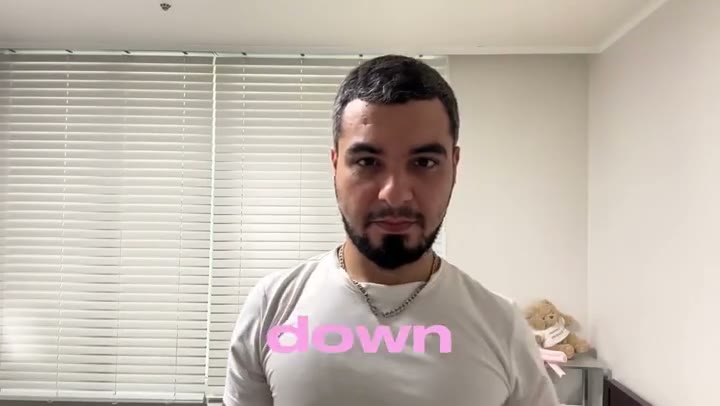
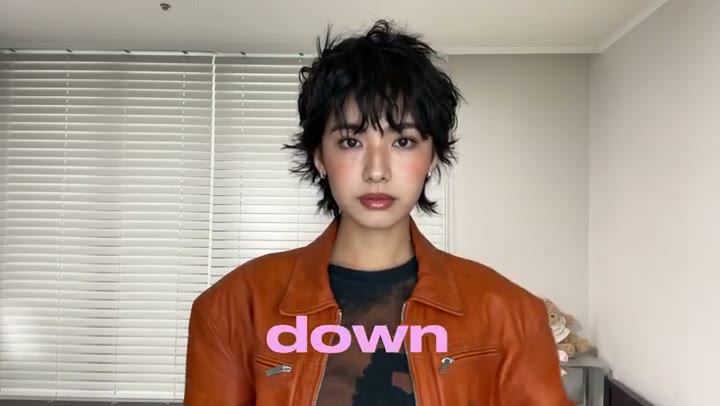
Give Upside Down AI your chosen appearance

Follow the complete Upside Down AI sequence

The appeal of Upside Down AI comes from how the action develops: the subject turns a palm indoors, covers the lens and reappears outside for the reveal. Starting from the prepared reference saves you from piecing together separate shots, arranging a location or describing every movement in a prompt. The upload controls the cast or subject, while the reference guides the performance. The reference has no soundtrack. Pink lyric text is part of the footage, and the second photo is another look rather than a different partner. Preview the beginning and ending before generating; both are part of the clip you are choosing.

Follow the complete Upside Down AI sequence

Where your Upside Down AI video fits

Make an outfit transition or a personal before-and-after style edit. Upside Down AI gives you a self-contained scene that can stand alone or become part of a longer edit. This reference is silent, and the finished video has no added soundtrack. You can review and download the completed result in My creations, then make any finishing edits in your usual editor. For public or commercial sharing, check the permissions for the photographs, reference footage and any soundtrack.

Where your Upside Down AI video fits

Is Upside Down AI right for your idea?

Choose Upside Down AI when the prepared performance fits the result you want. These are the decisions to make before generating.

Start with the intended result

Make an outfit transition or a personal before-and-after style edit.

Match the available inputs

The template needs one photo. You can add up to 1 optional reference in the labeled additional slots. Choose a clear main-person image; if using the optional slot, show the same person in the revealed outfit.

Keep the scope clear

The reference has no soundtrack. Pink lyric text is part of the footage, and the second photo is another look rather than a different partner.

Upside Down AI credits

Use the quote on Generate for this reference and your chosen settings. The plan cards describe account options and may use different example durations.

Starter

For your first ideas.

$8.3/month

$100.0 charged yearly

2,400 credits/year

Up to 400 images

GPT Image 2Nano Banana Pro

Up to 133 videos

Seedance 2.5Kling 3.0 Motion Control
  • Up to 4K images and HD videos, depending on the model
  • Image editing, video creation & motion transfer
  • Watermark-free image & video downloads
  • Generation history in your account
Popular40% OFFSave $238.8

Pro

For a steady creative flow.

$30.0/month$49.9/month

$360.0 charged yearly

21,600 credits/year

Up to 3,600 images

GPT Image 2Nano Banana Pro

Up to 1,200 videos

Seedance 2.5Kling 3.0 Motion Control
  • Up to 4K images and HD videos, depending on the model
  • Image editing, video creation & motion transfer
  • Watermark-free image & video downloads
  • Generation history in your account
  • Use credits across image and video models
Best Value50% OFFSave $599.8

Business

For more creations, more often.

$49.9/month$99.9/month

$599.0 charged yearly

48,000 credits/year

Up to 8,000 images

GPT Image 2Nano Banana Pro

Up to 2,666 videos

Seedance 2.5Kling 3.0 Motion Control
  • Up to 4K images and HD videos, depending on the model
  • Image editing, video creation & motion transfer
  • Watermark-free image & video downloads
  • Generation history in your account
  • Use credits across image and video models

Basic

$0

Try before you subscribe

  • 18 one-time signup credits
  • Generation history included
  • Watermarked previews & downloads
  • Up to 3 images or 1 video
  • Watermark-free downloads require payment

Prices in USD; taxes and total shown at checkout. Subscriptions renew automatically; cancel in Billing settings. Subscription credits expire each period; one-time credits never expire. Refund requests: within 72 hours. Eligible refunds deduct used purchased credits and, where permitted, actual non-returned processing fees. Processing fees are capped at 6% of the original purchase amount, excluding separately charged taxes. Terms · Refund Policy.

Upside Down AI: questions before you create

Check the inputs, scene limits, sound and review steps before committing credits.

What do I upload for Upside Down AI?

Upside Down AI requires one photo. You can add up to 1 optional reference in the labeled additional slots. Choose a clear main-person image; if using the optional slot, show the same person in the revealed outfit. Use images you own or have permission to edit. A blurred crop, collage or heavily obscured subject gives the model less evidence to work with.

How are photos assigned in Upside Down AI?

Upside Down AI uses the labeled upload positions to identify each replacement role. Main character: Photo 1 — One person with their face, hair, body and starting outfit visible. Reveal look: Photo 2 (optional) — The same person wearing the look for the outdoor reveal. Leave empty to use Photo 1 throughout. Check the assignment before generating. If the source changes camera angle or the subject moves across the frame, that does not create a new role. Keep the input associated with the same character or object through the sequence; do not use one picture containing several subjects when a slot calls for one.

What stays unchanged in Upside Down AI?

The prepared video guides the setting, movement, camera framing, edits and timing for Upside Down AI. The reference has no soundtrack. Pink lyric text is part of the footage, and the second photo is another look rather than a different partner. The instructions request those features, but a generated result can still vary in small details.

Does Upside Down AI include sound?

This reference is silent, and the finished video has no added soundtrack. Upside Down AI follows a source with no audio track. The tool does not invent music or dialogue to fill that silence. If your intended post needs sound, add an appropriately licensed track after downloading the result. Choose it to fit the existing timing; a separate soundtrack will not change the action or make the character deliver newly written words.

Can I change the length or framing of Upside Down AI?

The prepared clip is approximately 9.9 seconds long; its framing and sequence guide your output. Upside Down AI follows that reference rather than offering a separate timeline or shot editor. Available resolution settings affect the output option and credit quote. They do not turn the prepared routine into a longer story. If you need a different reference performance, use the main AI Genjutsu workspace; for this page, first make sure the shown scene is the one you want.

Do I need to write a prompt for Upside Down AI?

No. The Upside Down AI template already supplies its motion instructions and reference video. Your main choices are the input images and available settings. The role descriptions beside the uploads explain how to cast the scene. You do not need to paste a prompt from another site.

How do I get a more recognizable Upside Down AI result?

Choose a clear main-person image; if using the optional slot, show the same person in the revealed outfit. In Upside Down AI, the model has to interpret your reference through movement and changing viewpoints. Details that are hidden in the photo may be invented, especially on a back view or near overlapping subjects. Start with a clean, well-lit reference and inspect the hand covering the lens, the reveal outfit and identity on both sides of the transition. A clearer image may help, but neither the examples nor a new attempt guarantee perfect identity or anatomy.

Are the Upside Down AI examples guaranteed results?

No. The videos illustrate the prepared scene and, where supplied, external community variations. They are not a record of a successful generation from your photos on AI Genjutsu. Upside Down AI has the input roles and fixed sequence described here; an example showing a broader change does not add an upload slot or enable a different workflow.

How much does Upside Down AI cost?

You can inspect this Upside Down AI page and its examples before creating a job. To generate, sign in and have enough credits for the quote displayed with your selected settings. The reference duration and resolution matter to that quote. A fresh generation is a new job; watching or downloading a result you already created does not start a new generation. General plan examples may describe a different model or clip length, so use the current Generate quote for this template.

What should I check before sharing Upside Down AI?

Play the full Upside Down AI result, including the final moments, and examine the hand covering the lens, the reveal outfit and identity on both sides of the transition. Remember that this version is silent. Check the rights and consent relevant to the people, characters, footage and audio in your intended use. Present an invented scene honestly as an AI edit where appropriate.

Ready to make Upside Down AI?

Choose your photos and return to the Upside Down AI workspace to check the settings and quote.

Upside Down AI reference showing a hand-led transition into a second appearance